Headscale deployment on Fedora 37
Hi there,
Today, I want to try and go through the deployment of the Headscale control server. This is an open-source implementation of Tailscale, a commercial VPN service.
Here is an explanation from the Headscale documentation.
Tailscale is a modern VPN built on top of Wireguard. It works like an overlay network between the computers of your networks - using NAT traversal.
The control server works as an exchange point of Wireguard public keys for the nodes in the Tailscale network. It assigns the IP addresses of the clients, creates the boundaries between each user, enables sharing machines between users, and exposes the advertised routes of your nodes.
https://github.com/juanfont/headscale
For the OS I will use Fedora 37, but it should also work on CentOS / Rocky Linux.
Download and configuration of Headscale
First, we need to get the Headscale binary from GitHub. As far as I am aware, there is no repository or RPM package for Fedora.
For this, we use "wget", if you do not have it already on your system you can install it with this command.
headscale :: ~ » sudo dnf install wget -y
Download, create files, and service user
Let's get the binary. I will use the official documentation for this guide, by the way.
Version 0.21.0 was the latest at the time of writing.
headscale :: ~ » sudo wget --output-document=/usr/local/bin/headscale https://github.com/juanfont/headscale/releases/download/v0.21.0/headscale_0.21.0_linux_amd64
This will download the binary, move and rename it to "/usr/local/bin/headscale".
Next, we make it executable.
headscale :: ~ » sudo chmod +x /usr/local/bin/headscale
Create a directory for the headscale configuration file and the SQLite database. For the latter, we will create a user, that uses the folder as a home dir.
headscale :: ~ » sudo mkdir -p /etc/headscaleheadscale :: ~ » sudo useradd --create-home --home-dir /var/lib/headscale/ --system --user-group --shell /usr/bin/nologin headscale
Now we need to create an empty SQLite database and configuration file.
headscale :: ~ » sudo touch /var/lib/headscale/db.sqliteheadscale :: ~ » sudo touch /etc/headscale/config.yaml
The configuration file
There is an example configuration on the GitHub site. It is recommended to modify and use this as a base.
At a minimum, we need to change "server_url", "listen_addr", "db_path" and "unix_socket" and add "private_key_path". If you want to, you can adjust the "ip_prefixes" and "nameservers". I set the "override_local_dns" to false since it caused issues in my setup.
headscale :: ~ » sudo vim /etc/headscale/config.yaml... server_url: http://vpn.example.de:8080 private_key_path: /var/lib/headscale/private.key listen_addr: 0.0.0.0:8080 db_path: /var/lib/headscale/db.sqlite unix_socket: /var/run/headscale/headscale.sock ip_prefixes: 10.32.0.0/16 override_local_dns: false
Ok, now we set the permissions.
headscale :: ~ » sudo chown headscale:headscale /etc/headscale -Rheadscale :: ~ » sudo chown headscale:headscale /var/lib/headscale -R
Now, we could start the server. But I want to create a systemd service file first.
For this, create a file in "/etc/systemd/system/" named "headscale.service" and paste the following into it. If you use different folders for headscale, adjust the "WorkingDirectory" and the "ReadWritePaths".
[bg_collapse view="link" expand_text="Show More" collapse_text="Show Less"]
[Unit]
Description=headscale controller
After=syslog.target
After=network.target
[Service]
Type=simple
User=headscale
Group=headscale
ExecStart=/usr/local/bin/headscale serve
Restart=always
RestartSec=5
Optional security enhancements
NoNewPrivileges=yes
PrivateTmp=yes
ProtectSystem=strict
ProtectHome=yes
WorkingDirectory=/var/lib/headscale
ReadWritePaths=/var/lib/headscale /var/run/headscale
AmbientCapabilities=CAP_NET_BIND_SERVICE
RuntimeDirectory=headscale
[Install]
WantedBy=multi-user.target
[/bg_collapse]
Start the Service
Reload the systemd daemon, start, and enable the service.
headscale :: ~ » sudo systemctl daemon-reloadheadscale :: ~ » sudo systemctl start headscale.serviceheadscale :: ~ » sudo systemctl enable headscale.service
To check the status, use this command.
headscale :: ~ » sudo systemctl status headscale.service
That's it for the server configuration. Next, we need to create a user and add a few clients.
User creation and Client Registration
Create user
Let's create a few users. These will be used to assign to the clients later.
headscale :: ~ » headscale users create client1User created headscale :: ~ » headscale users create client2User created headscale :: ~ » headscale users create client3User created
With the "list" option, you can list all users we created.
headscale :: ~ » headscale users listID | Name | Created 1 | client1 | 2023-04-02 16:39:35 2 | client2 | 2023-04-02 16:41:00 3 | client3 | 2023-04-02 16:42:24
Install tailscale client
Now we can register a device, but first, we need the client application. There is a repository for tailscale. Add it with "dnf config-manager" and install the client.
client1 :: ~ » sudo dnf config-manager --add-repo https://pkgs.tailscale.com/stable/fedora/tailscale.repoclient1 :: ~ » sudo dnf install tailscale -y
Start the tailscale service.
client1 :: ~ » sudo systemctl start tailscaled.service
Register Client
Now we can register the client. Use the "--login-server" option to specify our newly created server.
client1 :: ~ » sudo tailscale up --login-server http://vpn.example.de:8080
This will give you a link that looks something like this.
client1 :: ~ » To authenticate, visit: http://vpn.example.de:8080/register/nodekey:3515c2245337dsfjl30a37a345c0eaaa2e5jd93las9230e56459a33
If you open this in your browser, you will get a command that you have to execute on the headscale server.
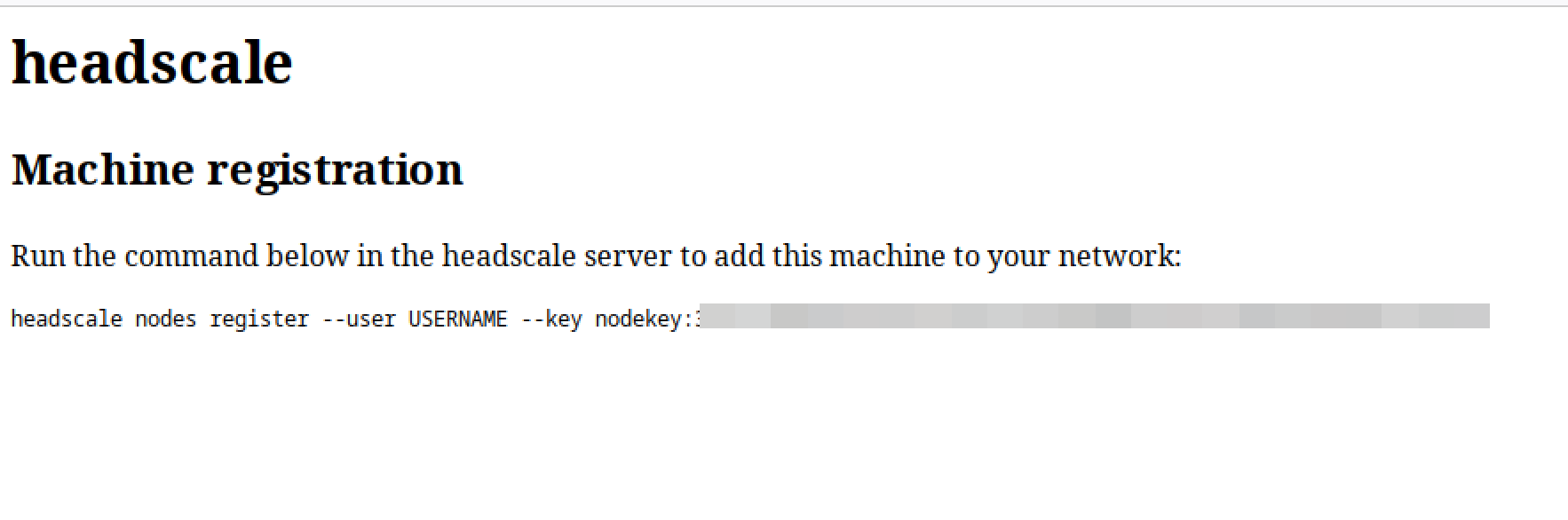
Replace "USERNAME" with the actual username you want to use and execute it.
headscale :: ~ » headscale nodes register --user client1 --key nodekey:123442352345266037afds5hsdfg2dfg0eaedd40aa2e5a5e3adb8cb9e0ed23dgg4w4sdfa33Machine notebook-client1 registered
Once executed successfully, the client should get a "Success" message and be connected to headscale.
To check the status on the headscale server, execute the following command. I also added a couple of devices to test the connection.
Testing the connection
Great, let's test the connectivity.
For the tests, I will use client3 and try to ping client2. These devices are in my homelab, but on different networks.
# Client2 client2 :: ~ » ifconfig enp1s0enp1s0: flags=4163<UP,BROADCAST,RUNNING,MULTICAST> mtu 1500 inet 10.10.0.103 netmask 255.255.255.0 broadcast 10.10.0.255 inet6 fe80::e722:ab5f:468d:a7ca prefixlen 64 scopeid 0x20<link> ether 00:00:00:69:00:94 txqueuelen 1000 (Ethernet) RX packets 402284 bytes 103860335 (99.0 MiB) RX errors 0 dropped 0 overruns 0 frame 0 TX packets 659104 bytes 6604493862 (6.1 GiB) TX errors 0 dropped 0 overruns 0 carrier 0 collisions 0 client2 :: ~ » ifconfig tailscale0tailscale0: flags=4305<UP,POINTOPOINT,RUNNING,NOARP,MULTICAST> mtu 1280 inet 10.32.0.2 netmask 255.255.255.255 destination 10.32.0.2 inet6 fd7a:115c:a1e0::2 prefixlen 128 scopeid 0x0<global> inet6 fe80::766e:2f5b:d9bf:8f3d prefixlen 64 scopeid 0x20<link> unspec 00-00-00-00-00-00-00-00-00-00-00-00-00-00-00-00 txqueuelen 500 (UNSPEC) RX packets 20 bytes 1680 (1.6 KiB) RX errors 0 dropped 0 overruns 0 frame 0 TX packets 36 bytes 2536 (2.4 KiB) TX errors 0 dropped 0 overruns 0 carrier 0 collisions 0 # Client3 client3 :: ~ » ifconfig enp1s0enp1s0: flags=4163<UP,BROADCAST,RUNNING,MULTICAST> mtu 1500 inet 10.10.200.102 netmask 255.255.255.0 broadcast 10.10.200.255 inet6 fe80::5054:ff:fee6:d196 prefixlen 64 scopeid 0x20<link> ether 00:00:00:e6:00:96 txqueuelen 1000 (Ethernet) RX packets 6914 bytes 3033110 (3.0 MB) RX errors 0 dropped 0 overruns 0 frame 0 TX packets 6532 bytes 872299 (872.2 KB) TX errors 0 dropped 0 overruns 0 carrier 0 collisions 0 client3 :: ~ » ifconfig tailscale0tailscale0: flags=4305<UP,POINTOPOINT,RUNNING,NOARP,MULTICAST> mtu 1280 inet 10.32.0.3 netmask 255.255.255.255 destination 10.32.0.3 inet6 fd7a:115c:a1e0::3 prefixlen 128 scopeid 0x0<global> inet6 fe80::28f3:6b75:ec83:6a6c prefixlen 64 scopeid 0x20<link> unspec 00-00-00-00-00-00-00-00-00-00-00-00-00-00-00-00 txqueuelen 500 (UNSPEC) RX packets 5 bytes 420 (420.0 B) RX errors 0 dropped 0 overruns 0 frame 0 TX packets 29 bytes 2112 (2.1 KB) TX errors 0 dropped 0 overruns 0 carrier 0 collisions 0
Let's try the connection. First, I will ping the local IP address to verify that client3 cannot reach client2.
client3 :: ~ » ping 10.10.0.103PING 10.10.0.103 (10.10.0.103) 56(84) bytes of data. ^C --- 10.10.0.103 ping statistics --- 19 packets transmitted, 0 received, 100% packet loss, time 18433ms
Alright. Next, the tailscale interface.
client3 :: ~ » ping 10.32.0.2PING 10.32.0.2 (10.32.0.2) 56(84) bytes of data. 64 bytes from 10.32.0.2: icmp_seq=1 ttl=64 time=3.18 ms 64 bytes from 10.32.0.2: icmp_seq=2 ttl=64 time=2.62 ms 64 bytes from 10.32.0.2: icmp_seq=3 ttl=64 time=2.53 ms 64 bytes from 10.32.0.2: icmp_seq=4 ttl=64 time=2.67 ms 64 bytes from 10.32.0.2: icmp_seq=5 ttl=64 time=2.66 ms ^C --- 10.32.0.2 ping statistics --- 5 packets transmitted, 5 received, 0% packet loss, time 4006ms rtt min/avg/max/mdev = 2.526/2.729/3.178/0.230 ms
The ping went through immediately, but this is because I already tested it before. The initial connection could take a couple of seconds, which means on the first try I lost a few pings. But after the initial connection, it works quite nicely.
Route advertisement
There is actually the option to advertise the routes from a client. Let's go over that quickly.
I will advertise the routes from client2. "--advertise-exit-node" advertises the client2 as a default gateway.
# Advertise routes client2 :: ~ » sudo tailscale up --login-server http://vpn.example.de:8080 --advertise-exit-node --advertise-routes=10.10.0.0/24 # Allow IP forwarding client2 :: ~ » echo 'net.ipv4.ip_forward = 1' | sudo tee -a /etc/sysctl.d/99-tailscale.confclient2 :: ~ » echo 'net.ipv6.conf.all.forwarding = 1' | sudo tee -a /etc/sysctl.d/99-tailscale.confclient2 :: ~ » sudo sysctl -p /etc/sysctl.d/99-tailscale.conf # Add masquerading (only if you use firewalld) client2 :: ~ » sudo firewalld --add-masquerade --permanent
Now we need to enable the routes on the Headscale server. First, let's check if they actually show up.
headscale :: ~ » headscale routes listID | Machine | Prefix | Advertised | Enabled | Primary 1 | client2 | ::/0 | true | false | - 2 | client2 | 10.10.0.0/24 | true | false | false 3 | client2 | 0.0.0.0/0 | true | false | -
Ok, they show up. Let's enable the route with the prefix 10.10.0.0/24. We use the ID to specify the route in the command.
headscale :: ~ » headscale routes enable -r 2
Check it again.
headscale :: ~ » headscale routes listID | Machine | Prefix | Advertised | Enabled | Primary 1 | client2 | ::/0 | true | false | - 2 | client2 | 10.10.0.0/24 | true | true | true 3 | client2 | 0.0.0.0/0 | true | false | -
On client3, we accept the routes.
client3 :: ~ » sudo tailscale up --login-server http://vpn.example.de:8080 --accept-routes
To check if the routes are actually accepted, we can use the "ip" command. Tailscale creates a separate table for its routes. To show the different rules, use "ip rule show".
client3 :: ~ » ip rule show0: from all lookup local 5210: from all fwmark 0x80000/0xff0000 lookup main 5230: from all fwmark 0x80000/0xff0000 lookup default 5250: from all fwmark 0x80000/0xff0000 unreachable 5270: from all lookup 5232766: from all lookup main 32767: from all lookup default
I know that in my case, tailscale uses 52 as an ID for the table, but I don't know if it's always the case. Anyway, to check the actual route, use the "ip show table" command.
client3 :: ~ » ip route show table 5210.10.0.0/24 dev tailscale010.32.0.1 dev tailscale0 10.32.0.2 dev tailscale0 100.100.100.100 dev tailscale0
Here we can see that the internal network "10.10.0.0/24" was advertised.
I might try a few of the other "overlay network" types of VPN applications, like netmaker or innernet, just to have a comparison. I think that could be fun.
Anyway. That's it.
Till next time.